![[2026 Update] Top 10 Fixes for Your iPad That Won't Turn On](https://fasterworld.co.uk/wp-content/uploads/2026/03/2026-Update-Top-10-Fixes-for-Your-iPad-That-Wont-Turn-On.jpg)
An iPad displaying a black screen that won’t turn on doesn’t necessarily mean it’s defective. Sometimes it’s a simple battery drainage quirk; other times, it’s a corrupted software loop. In rare cases, it may be a hardware failure that requires the new Repair Assistant tool.
- Before We Begin: Understand why your iPad won’t turn on
- Case 1: iPad won’t Turn On Due to Deep Battery Discharge
- Case 2:Fix iPad won’t turn on without data loss via a Professional iOS Repair Guru
- Case 3: iPad won’t Turn On Due to a system freeze
- Case 4: Fix via Recovery Mode Loop (Firmware Corruption)
- Case 5: Hardware Diagnosis & Advanced 2026 Solutions
In this guide, we’ll walk you through 10 proven solutions—from simple fixes to advanced tools to fix an iPad that won’t turn on, bring your iPad back to life using the latest 2026 techniques and tools without effort.
Before We Begin: Understand why your iPad won’t turn on
Before jumping into complex iPad won’t turn on repairs, it’s important to identify the root cause. Generally, an unresponsive iPad falls into one of these four reasons:
Reason 1. Your iPad won’t turn on due to the power draining out
Your iPad might be in a state of Deep Discharge. If the battery has been at 0% for too long, it lacks the “kickstart” energy to even show the charging icon immediately.

Reason 2. iPad frozen due to Software Crashes
Sometimes the iPad is actually “on,” but the operating system’s corrupted cache or failed update has encountered a critical error, showing the iPad frozen on the screen in a black state. This is often mistaken for hardware death.
Reason 3. iPad won’t turn on due to Firmware Corruption
If an iPad system update was interrupted or an iOS file became corrupted, the iPad might get stuck in Recovery Mode or a “Boot Loop”, flashing the Apple logo that won’t turn on.
Reason 4. iPad show black screen when Hardware Failure
This is the most serious category of iPad bugs. It involves internal damage—like a failed battery cell or a cracked display connector—that prevents the device from functioning.
Reason 5. Your iPad suffered physical damage
An iPad won’t turn on, which may mean your motherboard or screen is damaged, or it was dropped into water before, so that the electrical part does not work as usual.
Case 1: iPad won’t Turn On Due to Deep Battery Discharge
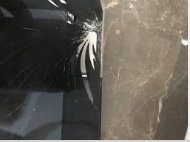
When an iPad won’t turn on or doesn’t respond to any buttons, no sounds, no vibration, with a completely black screen. Lithium-ion batteries have a protection circuit that can trigger a “deep discharge” state when the voltage drops too low. If your iPad won’t turn on and has been sitting unused for weeks, or if you ran the battery completely dead and then forgot about it, you are likely facing an iPad that can’t power on.
Fix 1: Let the iPad have a 60-Minute “Blind Charge.”
Grab your iPad’s original charging cable and a high-wattage adapter (ideally a 20W to 30W USB-C brick). Plug it in and walk away. Let it charge for at least 60 minutes uninterrupted. It will be a simple way to wake your iPad.
Fix 2: Clean the iPad Charging Port
Over time, pocket lint, dust, and debris pack into the USB-C or Lightning port. If the connector can’t make a solid “click,” it won’t charge, and you will see iPad won’t turn on. Use a non-metallic tool, like a plastic toothpick or a specialized anti-static brush, to gently clear out the port.
Fix 3: Swap Your iPad Cables (MFi Only)
iPad won’t turn on if you’re using a cheap, uncertified cable, which often results in a “trickle charge” that isn’t enough to wake a deeply discharged iPad. Swap to a known-working Apple-certified (MFi) cable to rule out accessory failure.
Pro Tip: If you hear an iPad charging chime or feel a vibration when plugging in, even if the screen is black, that’s actually great news. It means your iPad is receiving power and is actually “on”; the display is just currently unresponsive or in a glitch state.
Case 2:Fix iPad won’t turn on without data loss via a Professional iOS Repair Guru
Fix 4: Use the official iOS Repair tool Tenorshare ReiBoot
If manual buttons aren’t working, specialized software can often “kick” the iPad out of a black, unresponsive iPad screen. Tools like Tenorshare ReiBoot are designed to fix iPhones/iPads/Macs that won’t turn on without data loss.
What is Tenorshare Reiboot? Tenorshare ReiBoot is a professional-grade iOS repair tool for technical beginners and Pros, with 14 years of iOS official repair experience. Unlike a traditional system repair, ReiBoot updates AI analysis technology, which can smartly analyze your iPad bugs and AI-repair 150+ corrupted iPadOS system files while preserving your photos, apps, and personal data.
Fix iPad won’t turn on via Tenorshare ReiBoot iOS Repair Guide:
Step 1. Free Download Tenorshare ReiBoot from the official website and install it on your Windows PC or Mac.
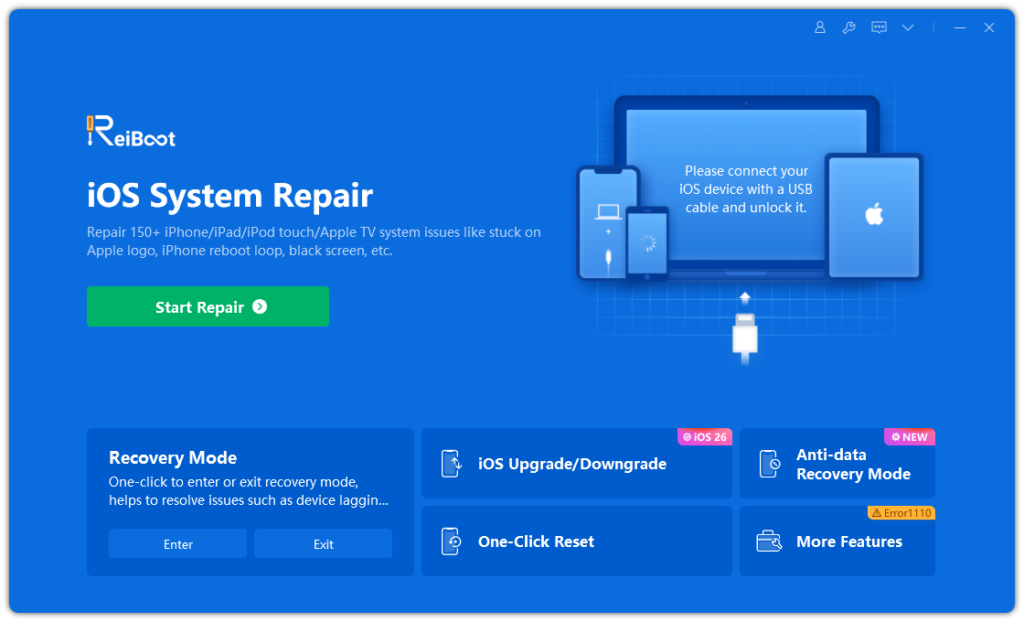
Step 2. Use a USB cable to connect your unresponsive iPad to the computer, then Open ReiBoot on your computer. Click ”Standard Repair“ Mode.
Step3. ReiBoot will begin repairing your iPad’s system files automatically. This process typically takes a few minutes without losing any data.
Case 3: iPad won’t Turn On Due to a system freeze
Your iPad won’t turn on but has power, just suddenly the screen goes black and won’t respond. Or perhaps it’s stuck on the Apple logo—the dreaded “White Screen of Death.” This usually happens during an iPadOS update or when an app conflict causes a kernel panic.
Fix 5: Push a Force Restart on your iPad
A force restart is the “magic bullet” for 60% of iPad issues that won’t turn on with power. It bypasses the normal shutdown process and cuts power to the hardware at a deeper level, clearing out temporary memory glitches. It will not erase your data.
- For iPads WITHOUT a Home Button (Pro, Air, Mini 6+):
- Quickly press and release Volume Up.
- Quickly press and release Volume Down.
- Press and hold the Top (Power) button.
- Keep holding—even if the screen stays black—for about 15 seconds.
- Release only when you see the Apple logo appear.

- For iPads WITH a Home Button:
- Press and hold both the Home button and the Top button simultaneously.
- Keep holding for at least 10–15 seconds.
- Release both when the Apple logo flashes on the screen.

Case 4: Fix via Recovery Mode Loop (Firmware Corruption)
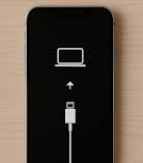
If your iPad won’t turn on and the screen shows an image of a cable pointing to a computer icon, your firmware is corrupted. This is often the result of a failed software update or deeper system file damage.
Fix 6: Recovery Mode Restore via Computer(Data will be erased)
When your iPad is stuck in recovery mode and is not recognized, you’ll need a Mac or a PC with the latest version of Apple Devices/iTunes to restore your iPad.
Connect and Enter: Connect your iPad to the computer. Follow the Force Restart steps mentioned above, but keep holding the final button even after the Apple logo appears. Release only when you see the “Connect to Computer” screen.
Note: The fastest way –1-Click enter iPad recovery mode.
- Choose “Update”: Your computer will show a prompt. Always choose Update first. This attempts to reinstall iPadOS without wiping your photos or apps.
- The “Nuclear” Option (Restore): If Update fails, you must choose Restore. This erases the device and installs a fresh copy of iPadOS.Make sure to back up all your iPad data to iCloud/PC before restoring.
Fix 7: The DFU Mode Restore (Deepest mode, all data will be lost)
If Recovery Mode fails, DFU (Device Firmware Update) is the deepest possible restore for your iPad that won’t respond. It bypasses the iPad’s bootloader entirely. It’s worthing nothing that backup your iPad data to iCloud or a computer when you start to use DFU mode.
- For Newer iPads: Connect to a computer. Press Vol Up, Vol Down, then hold the Top button for 3 seconds. While still holding the Top button, hold Vol Down for 10 seconds. Release the Top button, but keep holding Vol Down for 5 more seconds. The screen will stay black, but your computer will report a device in recovery mode. Click Restore.
Case 5: Hardware Diagnosis & Advanced 2026 Solutions
Fix 8: Check for a “Dead Display” (Not a Dead iPad)
Sometimes the iPad won’t turn on, but has sound and vibration; the screen’s backlight or digitizer has failed.
- The Test: Ask Siri to “Set an alarm for 1 minute” or use another device to call your iPad via FaceTime. If you hear sounds but see nothing, your iPad is alive; you just need a screen replacement.
Fix 9: Apple’s 2026 “Repair Assistant” Tool
In 2026, Apple expanded its Self-Service Repair and Repair Assistant software. If you have another Apple device, you can use the “Support” app to run a remote diagnostic on your irresponsible iPad (if it’s connected to Wi-Fi) to see if the battery or logic board is flagging an error.
Fix 10: Visit the Genius Bar or Authorized Provider
If you’ve tried all the above and the iPad still won’t turn on remains a cold, black slab, the issue is likely a hardware failure—such as a blown power IC or a dead logic board. Use the Apple Support app on another device to book a Genius Bar appointment.
ConclusionChoose a reliable, user-friendly solution for fixing an iPad that won’t turn on. For those stubborn cases where manual buttons fail, or the device is trapped in a boot loop, professional tools like Tenorshare ReiBoot offer a lifeline—repairing system files without sacrificing your personal data. If even software-based solutions come up empty, the issue likely resides in the logic board or display assembly, at which point professional service is the safest path.